
Google Preferred Sources badge generator
When your readers click on a Google Preferred Sources badge, they see your website more in AI Overviews, AI Mode, Top Stories, and Google Discover.
Preview
When clicked by a reader, Google asks for confirmation, and you join their preferred sources, making you more visible in AI Overviews, AI Mode, Top Stories, and Discover.
Preview
When clicked by a reader, Google asks for confirmation, and you join their preferred sources, making you more visible in AI Overviews, AI Mode, Top Stories, and Discover.
Your installation steps
What is Google Preferred Sources?
Preferred Sources lets readers tell Google which sites they like. Readers set their preferences, and Google shows them more stories from those sites in AI Overviews, AI Mode, Top Stories, and Discover.
The Preferred Sources button or badge puts that choice on your own site. Readers click “Add as a preferred source on Google”, confirm, and see more of your content from then on. That means more visits, and it may help your rankings beyond those readers too.
Three ways readers can pick you
Your badge
They click it on your article, confirm, and keep reading.
A news search
They search the news and pick you from the Top Stories section.
Google's settings
They look up your site on Google's preferences page and pick it there.
What you get when readers pick you
More of your stories in Top Stories
Readers who pick your site see more of your stories when they search for news.
Prioritized in AI answers
Readers who pick your site see it more often as a source in AI Overviews and AI Mode, marked as Preferred.
2×
More likely to get the click
Once readers pick a site as a preferred source, they click through to it more often, according to Google.
“A global SEO signal”
Possibly a wider SEO signal
SEO experts expect Google to use these picks beyond the readers who made them. Google hasn't confirmed it.
Can it help your global SEO?
Maybe. Google confirms what picks do for the readers who make them. Whether they also change how you rank for everyone else is still an open question.
What Google confirms
When a reader picks your site, your stories are more likely to show up for that reader in Top Stories. In AI Overviews and AI Mode, your links stand out with a Preferred label, and some news searches show a carousel that highlights them.
What SEO experts expect
Search Engine Journal called Preferred Sources a global SEO signal once Google opened it to every language. SEO expert Edward Sturm goes further: he expects picks to shape what Google recommends beyond the readers who made them, including in its AI answers.
Where to put it
The more places readers see the badge, the more chances they have to pick you.
End of the article
Readers who finish a story are the ones most likely to want more.
Below the headline
Seen by everyone who opens the page, including readers who only skim.
Newsletter footer
Readers who signed up for your emails are more likely to pick you.
How to add the badge to your website
The generator gives you the code with your choices already in it. Create your badge, then follow the steps for your setup.
In your HTML templates
- Open the template your articles use.
- Paste the code where the badge should appear, for example right after the article body.
- [Optional] Move the script(s) into your site's
<head>so the badge loads faster. If you want to place more than one badge on a page, repeat only the<div>(Google's design) or the<button>(your design). - Publish, then open an article to check the badge is there.
In WordPress
- Open the template your posts use. In a block theme, go to Appearance > Editor > Templates > Single Posts. In a classic theme, edit your theme's single post template, or install a code snippets plugin that adds HTML to your posts.
- Paste the code where the badge should appear. In a block theme, add a Custom HTML block there first.
- [Optional] Move the script(s) into your site's
<head>so the badge loads faster. A code snippets plugin can add them there. If you want to place more than one badge on a page, repeat only the<div>(Google's design) or the<button>(your design). - Save, then open a post to check the badge is there.
Only want it on one post? Edit that post, add a Custom HTML block where the badge should go and paste the code.
With Google Tag Manager
Tag Manager is the easiest way in if you can't edit your templates. The code is a tag that finds your article text and puts the badge inside it.
- In Google Tag Manager, click New Tag > Tag Configuration > Custom HTML. Name it something like Preferred Sources badge.
- Paste the code.
- Click Triggering, then + > Trigger Configuration > DOM Ready, and save. DOM Ready makes the tag wait until the article has loaded.
- Click Preview, open an article and check the badge is there. Then click Submit to publish.
In Wix and other site builders
- Add an embed element where the badge should go. In Wix, go to Add Elements > Embed Code > Popular Embeds > Embed HTML. In Squarespace, add a Code block. In Webflow, add a Code Embed element.
- Paste the code. On Wix, use the plain link version instead (see below).
- Publish, then open the page to check the badge is there.
Wix runs embedded code in a separate frame, so the script version can't tell which site the badge is for. The plain link version works there, and in any builder that doesn't run scripts. Readers confirm your site on Google rather than in one tap.
In your newsletter
- Download the badge image.
- In your email tool, add the image to your newsletter template.
- Select the image and add your badge link.
- Send yourself a test email and click the badge to confirm it opens correctly.
Email tools don't run scripts, so the badge is an image that links to Google. Readers confirm your site there.
As a link
- Copy your badge link.
- Share it anywhere you can post a link, like your social bio, a post or a message to your readers.
The link opens Google's Preferred Sources settings with your site already searched, so readers only have to select it.
If the badge doesn't show
- Your cookie banner or consent tool may hold back Google's script until the visitor accepts. Check whether it blocks scripts from news.google.com.
- A content security policy can block the script too. Allow news.google.com as a script source.
- In Tag Manager, use Preview mode to check that the tag fired and that your selector matches an element on the page.
Turn returning readers into longer visits, subscribers and more ad revenue
What changes when you implement Powerbeans
Visitors get more engaged
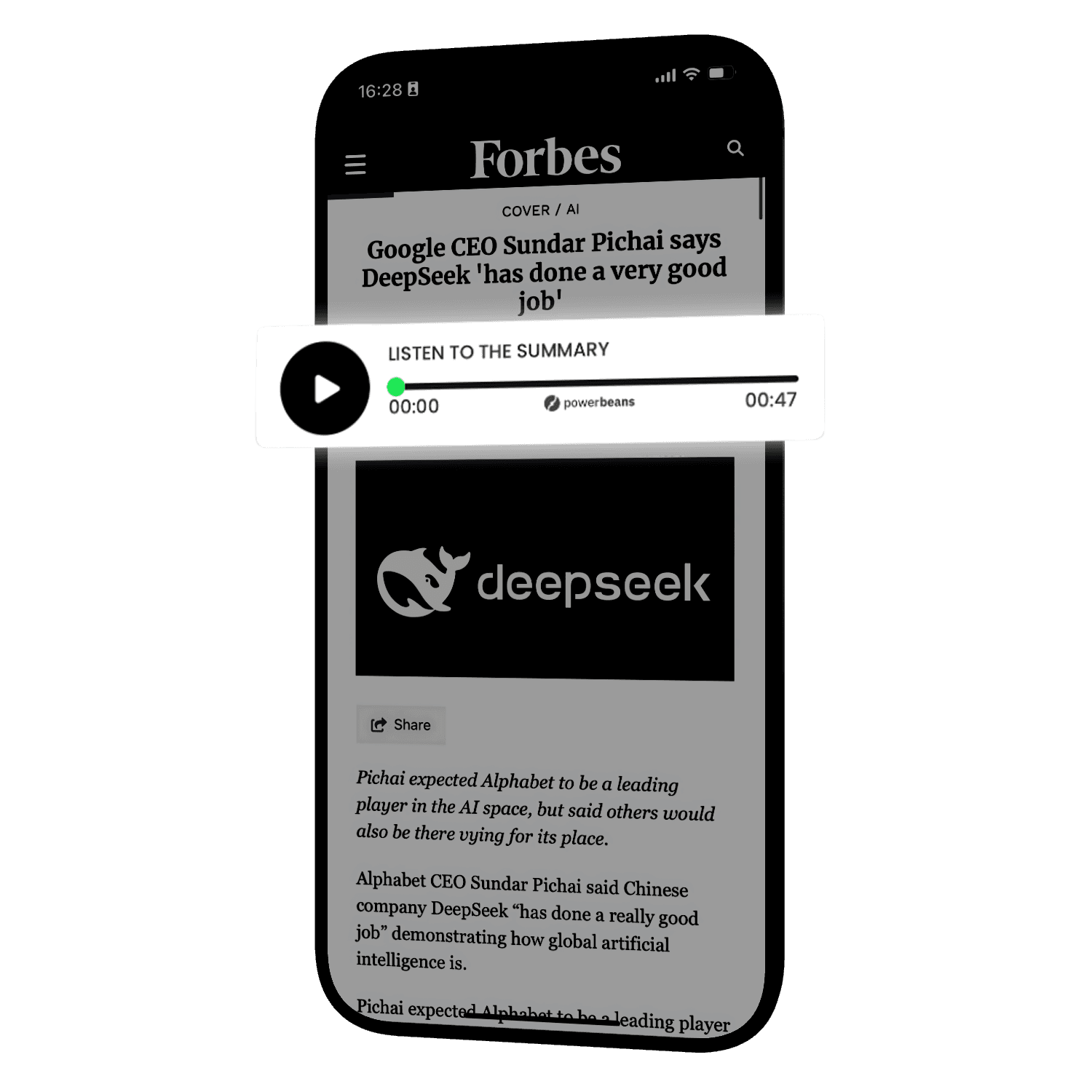
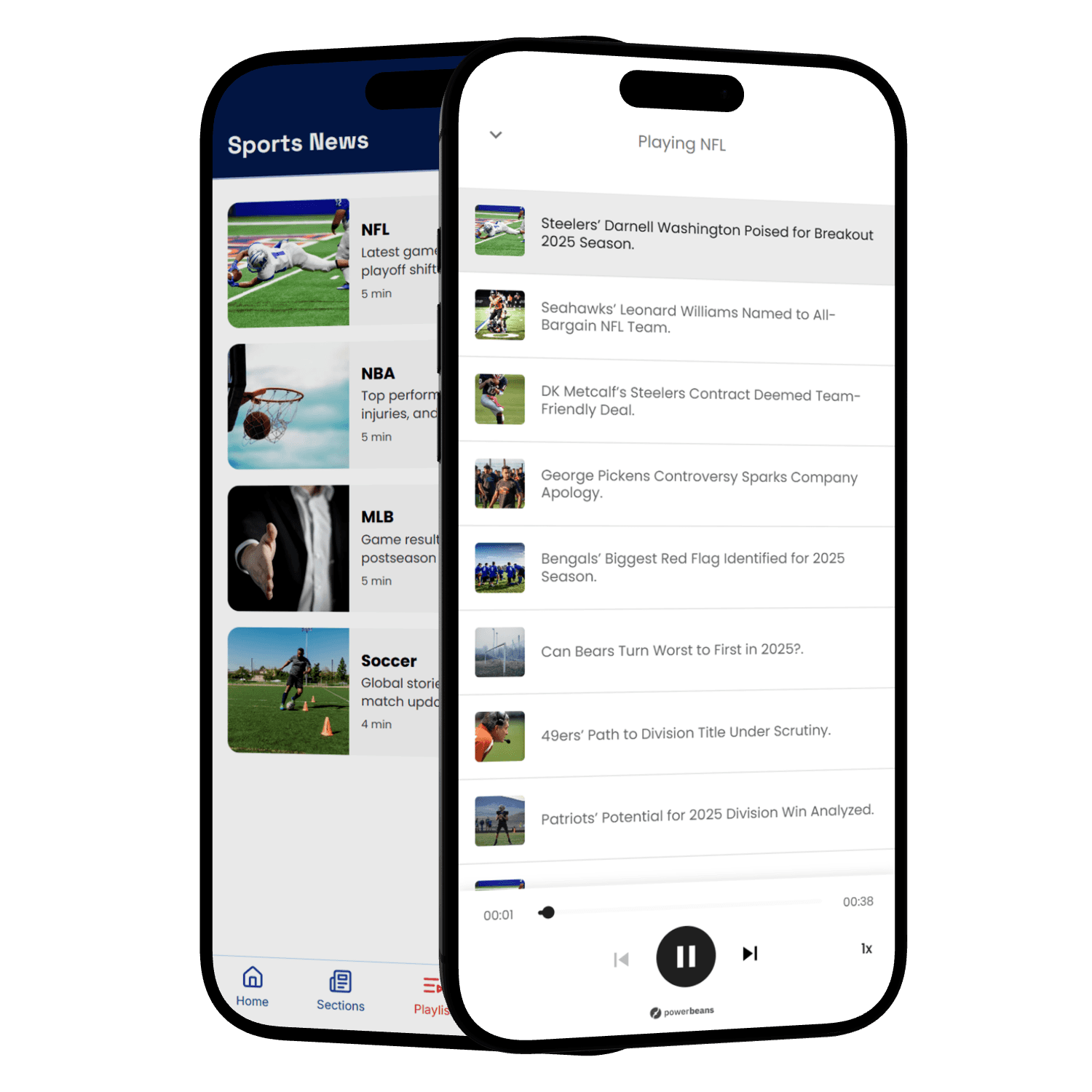
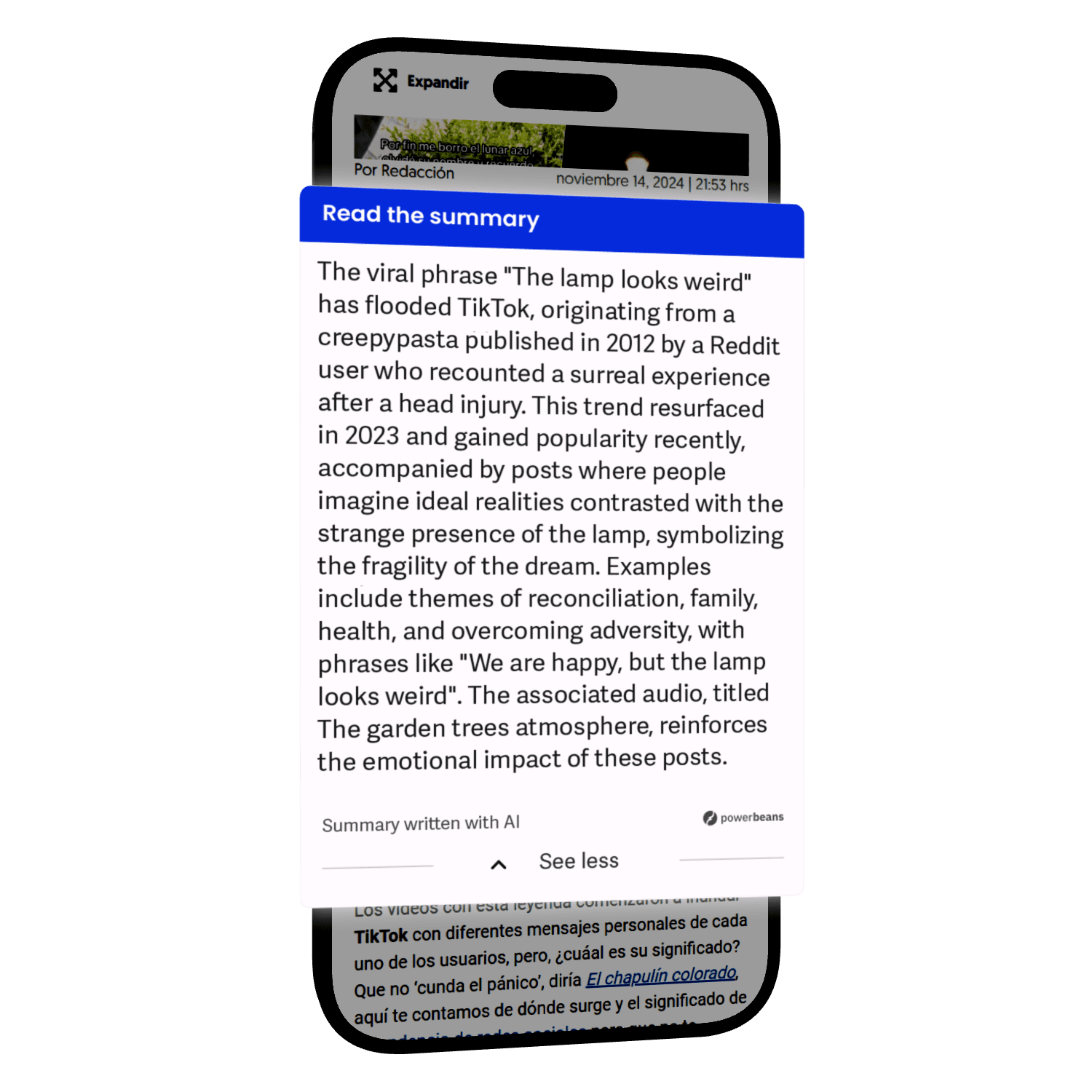
Visitors have new ways of consuming your content that are adapted to their habits. More time on site, less bounce rate, and more articles read.
Content reaches further
Audio gets your content to commuters, multitaskers, and listeners who would never click an article.
More subscribers, less churn
Make audio or ad-free audio a subscriber perk. Visitors have one more reason to subscribe, and subscribers get more for what they pay.
New advertising revenue
Display, audio, and video ad slots are built into the products, running on Google MCM with support for programmatic and direct sales.
Boost your engagement and revenue
Automatically turn your articles into AI-powered formats like audio summaries. Boost your time on site, reach a broader audience, and gain ad revenue with no extra effort.
Try it on your articlesQuestions about the Preferred Sources badge
Yes. There's no signup, and the code is yours. Nothing in it loads from Powerbeans.
Yes, both names mean the same thing. It's the “Add as a preferred source on Google” button you may have seen on other news sites.
Yes. The generator's Tag Manager tab gives you a ready-made tag. Paste it into Tag Manager and it finds your articles on its own and adds the badge at the start or end of each one. The guide on this page walks you through every click.
Not in a way your readers will notice. Google's script is about 39 KB compressed and loads in the background, without holding up your article.
Yes. Pick “Your design” in the generator to set the text, colors, corners and size. On your website it still opens Google's one-tap flow.
Maybe. For the readers who pick you, yes: Google confirms your stories show up more for them in Top Stories, AI Overviews and AI Mode. Beyond them, Search Engine Journal calls Preferred Sources a global SEO signal, and SEO expert Edward Sturm expects picks to shape what Google recommends to everyone. Google hasn't confirmed that wider effect yet.
Google doesn't offer a live report yet. In October 2026 it emailed some site owners their selection counts. You can check that your site can be picked by searching for it on Google's preferences page.
No. Preferred Sources shows up most in Top Stories, which is news, but blogs, magazines and niche sites that publish often can be picked too.